
Importing and exporting inventory
Prepare a spreadsheet, review identity matches and partial results, and export a clearly scoped copy of the records you can access.
Choose the workflow that matches the data
The inventory Import action reads asset rows. Site survey imports and funding schedule imports have their own formats and workflows; a workbook accepted by one is not automatically suitable for another. Start from the template for the page you intend to change.
An import updates the application record. It does not configure the physical switch, prove a reported location or replace a backup. Keep the original file so you can compare the submitted data with the result. Create permission is required to open the asset import; existing-record updates still have their own server authorization and ownership checks.
Prepare an asset file
If a workbook is refused as damaged or unsafe, no inventory records have been written by parsing it. Obtain a fresh copy or resave it as a standard Excel workbook, then review the detected table before importing. A smaller file is not necessarily safe: Cenovel also checks the expanded contents and consistency of its archive headers.
- Open Import in the asset register and download the template. Fill the Assets sheet with one physical asset per row; the Example reference sheet explains values and should not be imported as equipment.
- Provide a serial and a model name already present in the catalog for every row. Model name matching ignores case but does not create a new catalog product from arbitrary spreadsheet text.
- Keep identifier columns as text so spreadsheet software does not remove leading zeros. Record the actual asset tag when present; an absent tag does not require an invented number.
- Choose the CSV or Excel file, then inspect the detected column mapping. Serial, Serial Number and S/N are supported header variations. Verify the chosen table and columns instead of assuming detection always selected your intention.
- Review Where these land. Use current filter uses the current scope's status and location; otherwise choose the destination deliberately. Review funding values applied to every row.
- Read the confirmation before starting. Existing serial or MAC matches can be updated, while unmatched rows can create new records.
Understand matching and what is preserved
The importer's existing-record update deliberately leaves status out of its patch. Do not use the file's destination defaults as a promise that every matched record changes status. Review each matched item's saved placement and status; use the normal move or edit workflow for an intentional lifecycle change.
Custom values are limited to fields supported by the resolved model. For access-point imports, reported switch information can help resolve closet placement and a stack link. An imported asset, a resolved closet and a saved link are separate outcomes. Missing or ambiguous switch context requires review rather than a guessed link.
Scroll the table sideways to read all columns.
| Input | Treatment |
|---|---|
| Unique existing serial | The existing asset is updated using an exact serial lookup that ignores letter case and ASCII whitespace. Matching happens before pagination and keeps the account’s viewing restrictions. More than one visible matching record is refused; Cenovel does not choose one arbitrarily. |
| No serial match, usable MAC supplied | The importer checks for a matching hardware address. Multiple matches are refused rather than resolved arbitrarily. |
| No existing match | A new asset can be created after the row passes validation and its model is resolved. |
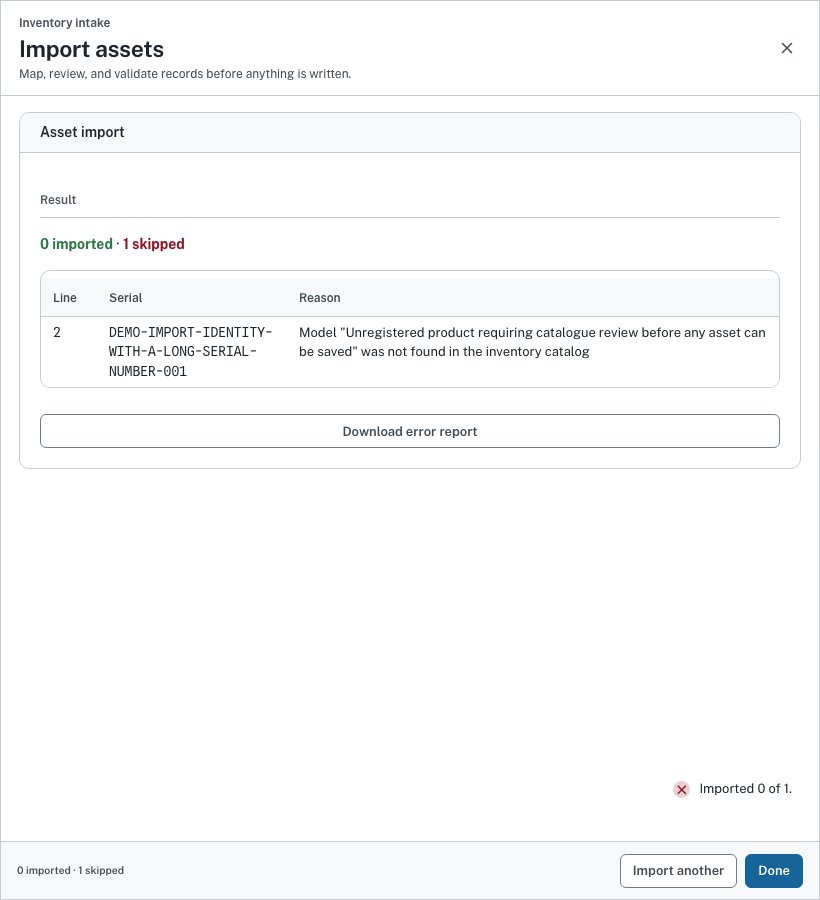
| Blank or unknown model | The row is skipped with a reason. Creating the asset does not implicitly create a catalog model. |
| Blank optional value on an existing asset | Blank imported values are omitted from the update; they do not clear the existing field. |
| Serial belongs to deleted inventory | The importer reports the deleted record for review. Restore it when appropriate, then rerun the import to apply the file's updates. |
Reconcile the import result
Rows are processed independently. Some can save while others are skipped or fail. Read the imported count, skipped rows, missing-fieldset warnings, closet-review list and stack-link failures. Choose Download error report when it appears, then correct the records or source rows it names.
A saved asset with an unsaved stack link is still a saved asset. Reopen it before retrying. If the connection is lost, inspect the actual records and compare identifiers before repeating the file; do not assume an unanswered request rolled back the import. A repeat should be reviewed as an update opportunity, not treated as a guaranteed no-op.
Export the intended scope
A failed export leaves the chosen scope and columns available for correction or retry. Closing the dialog cancels pending record retrieval and prevents a pending workbook or CSV package from starting its download. Local packaging already underway may finish internally, but its canceled result is discarded. A download that has already started belongs to the browser and is not recalled by closing the dialog. A successful export is a point-in-time copy of permitted records, not a continuously updated inventory or an independently certified audit result.
Use the E-Rate evidence workflow when the purpose is a funding review, and the appliance backup procedure when the purpose is recovery. These outputs answer different questions and do not replace one another.
- Open Export with Download permission. Confirm whether you want selected records, the current page, or everything matching the current filters.
- Choose the columns and output format. Workbook produces an Excel file; CSV with metadata produces a ZIP containing interchange data and its context.
- Check the search, model, location and funding filters before downloading. The export represents records available to your account, which may not be the entire estate.
- For a filtered request exceeding the 5,000-record fetch limit, narrow the filters and try again. The screen reports the limit instead of downloading a silently truncated file.
- Open the file and review its scope, generation context, column selection and record count before sharing or treating it as evidence.
Limits of this guide
- The asset-file workflow is separate from site survey and funding schedule imports.
- Very large spreadsheets, every workbook layout and interrupted imports need broader validation.
- Exports are permission-filtered recorded data, not complete backups or compliance certification.
- Workbook safety checks were tested against a limited set of malformed files and do not prove safety for every spreadsheet.
Reviewed against the current source code. Confirm the behavior and available actions on your installed release.